Connect Your Kiosk
Once your BoothKita account is created, here's how to connect your kiosk with your account.
Get a pairing code from the kiosk
Launch the BoothKita app on the kiosk machine. An unpaired kiosk shows "This Kiosk Isn't Paired":
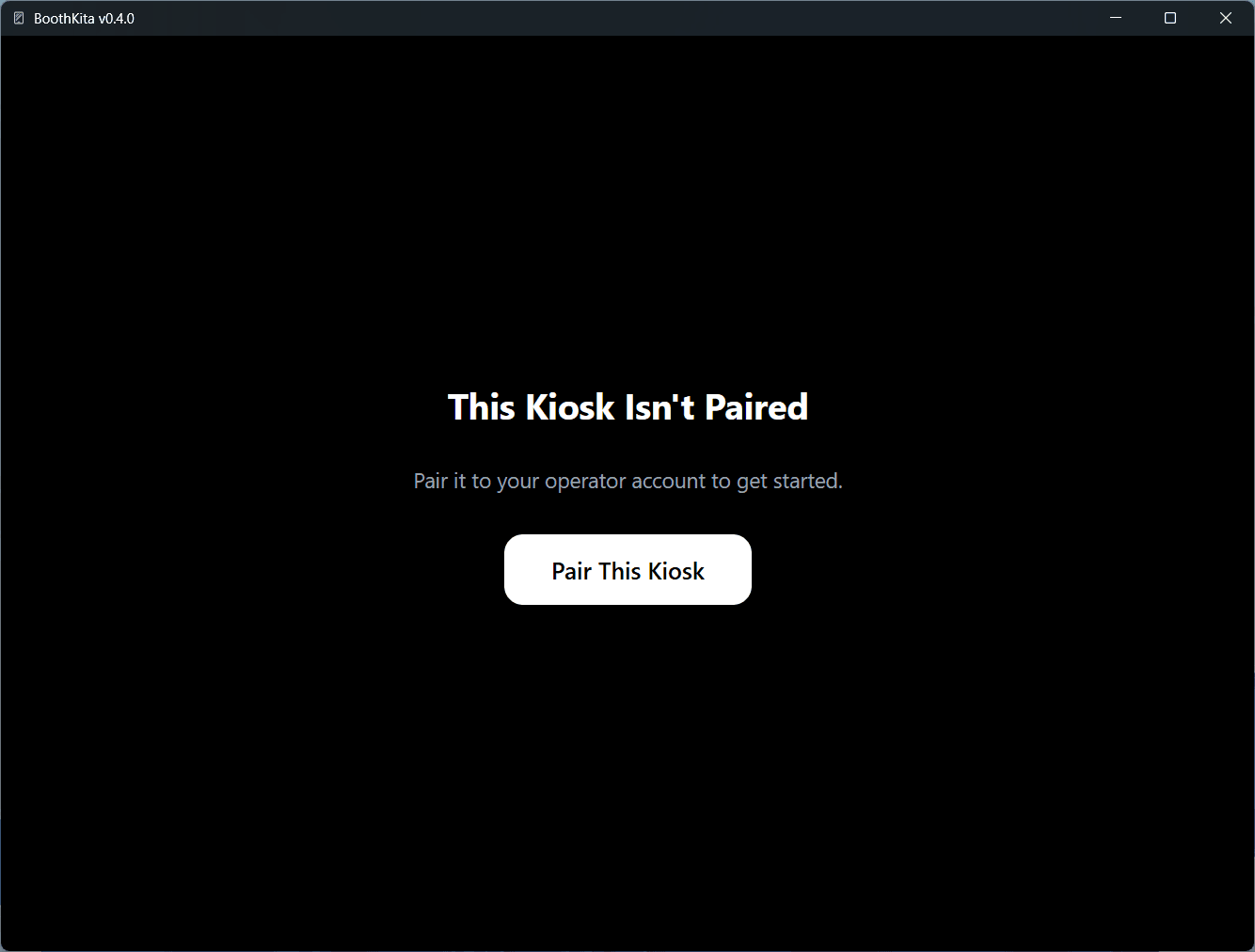
Tap Pair This Kiosk. It displays a code like YNGC-X3VT with a 10-minute countdown.
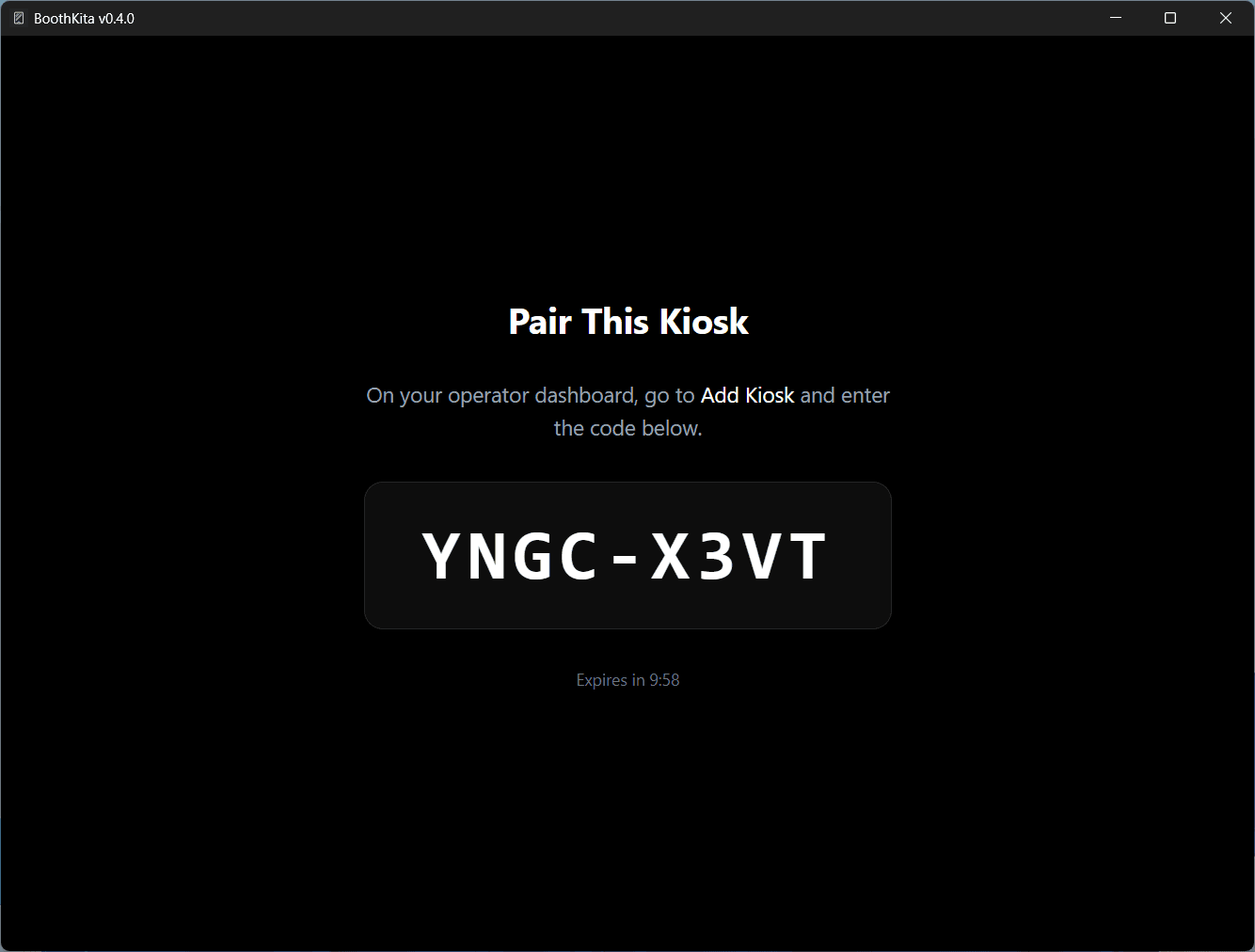
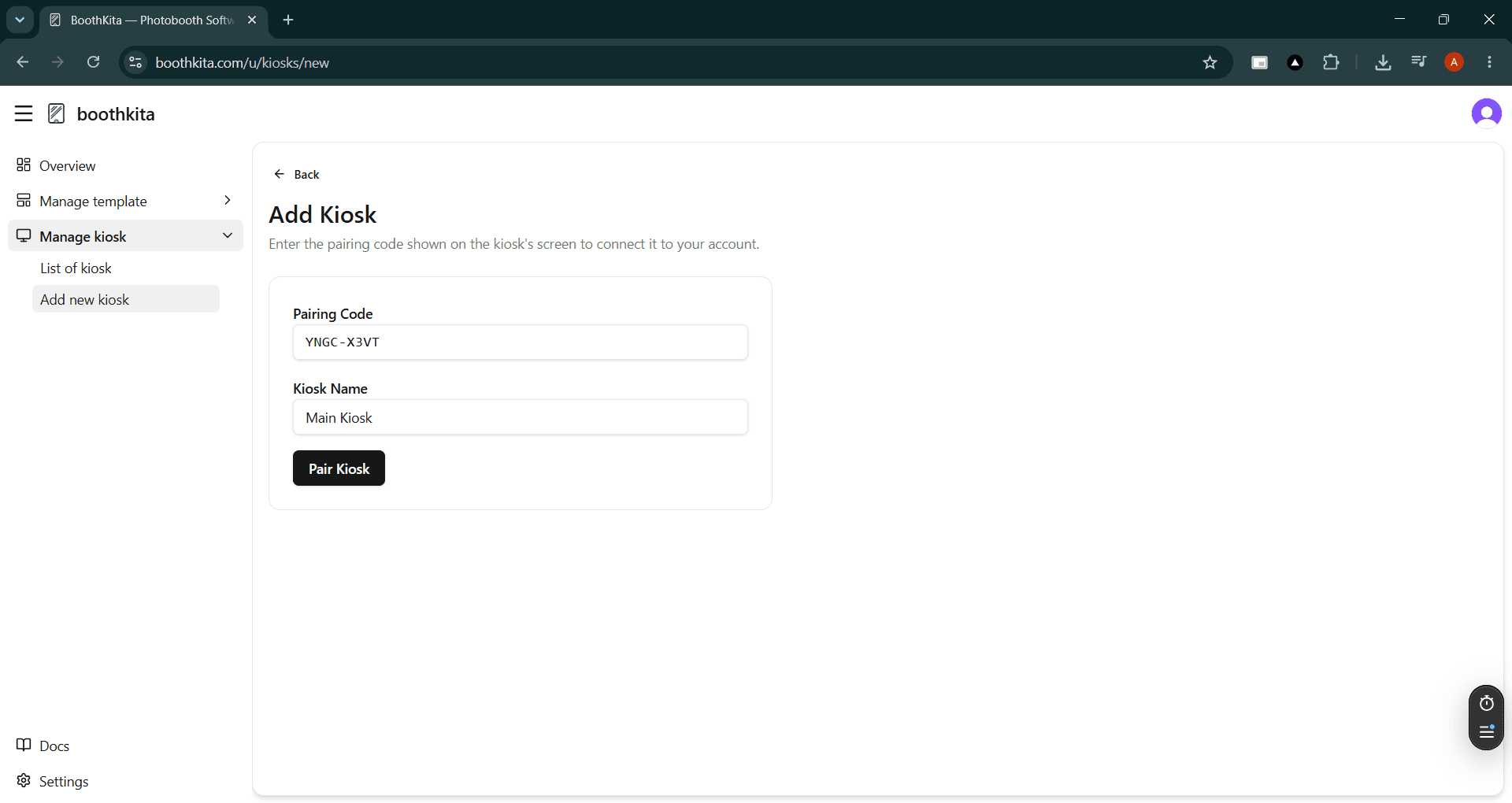
Claim the code on the dashboard
From the dashboard, go to Manage kiosk → Add new kiosk. Enter the Pairing Code shown on the kiosk and give it a Kiosk Name, then submit.
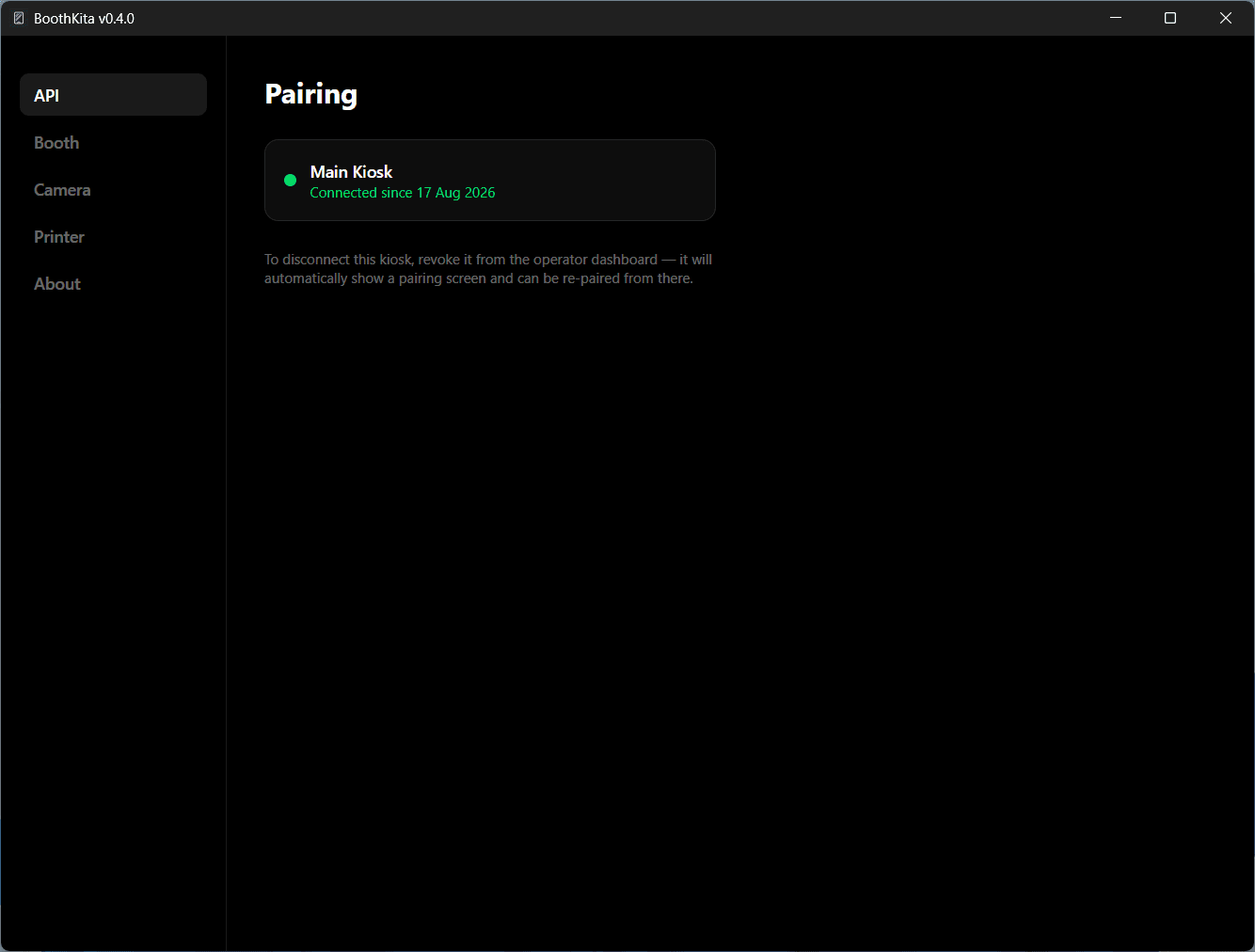
Back on the kiosk's, the Settings screen will be shown if pairing is successful:
Disconnecting or replacing a kiosk
Open the kiosk's detail page on the dashboard. Click Revoke will disconnect the kiosk immediately. Use Re-pair with a fresh code (from the same or a replacement machine) to reconnect it without losing that history.